Can you recover deleted video from GoPo?
Deleted video can be restorted with a few simple processes. With the GPR video recovery software lost files and videos will restored to a playable state very easily. When a video has been deleted, typically the data remains, but all pointers to the data are removed. It is easy to establish the start of the deleted file, but with a GoPro file, the video can be in upto a few thousand fragments. The GPR software is specially written for video recovery from SD cards. The software understands how the range of GoPro Hero camera stores data in the first place and so can reconstruct the files correctly. Most other recovery programs fail at this stage
The recovery process involves reading and examing every sector on the memory chip. For this reason it is not possible to just connect the camera to the PC, but it is necessary to connect the SD card using a reader (typically a USB device, or included in a PC or laptop). The reason that the camera cannot be read directly is because the GoPro camera only 'exposes' active files, and not the raw memory chip. Any software that suggests connecting a GoPro camera direcly to a PC for recovery is probably not telling then truth (NB some cameras can be connected this way, but not Gopro).
What types of files will be recovered?
Put simply, everything relating to GoPro of the memory chip
● MP4 Video files in all resolutions
● LRV - low resolution vidoe files
● JPG - any still photos
● WAV - high quality sound files
● THM - thumbnail files
Step by step process
● Download the software
The recovery process involves reading and examing every sector on the memory chip. For this reason it is not possible to just connect the camera to the PC, but it is necessary to connect the SD card using a reader (typically a USB device, or included in a PC or laptop). The reason that the camera cannot be read directly is because the GoPro camera only 'exposes' active files, and not the raw memory chip. Any software that suggests connecting a GoPro camera direcly to a PC for recovery is probably not telling then truth (NB some cameras can be connected this way, but not Gopro).
What types of files will be recovered?
Put simply, everything relating to GoPro of the memory chip
● MP4 Video files in all resolutions
● LRV - low resolution vidoe files
● JPG - any still photos
● WAV - high quality sound files
● THM - thumbnail files
Step by step process
● Download the software
● Insert the SD memory chip in the PC reader
● Open the software and select the memory chip
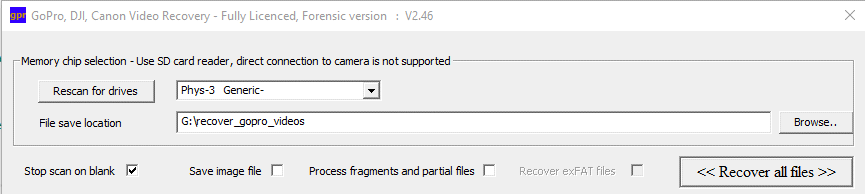
In the above screen the Phys-3 Generic is the SD card
The location to save the files is set - this must not be the memory chip, and will be blocked if attempted.
The 'Stop on blank' option saves time if the memory chip is not too full.
● Press <<Recover all files>>
The process is now fully automatic, but can take some time. However, on the demo there is a default option to just review the first 16GB of the memory chip.
The program then runs through 5 different stages as below
● Stage 1 - scans complete memory chip for key elements and file starts
● Stage 2 - Extracts JPG and WAV files
● Stage 3 - creates a shell video file
● Stage 4 - recovers low resolution videos (LRV)
● Stage 5 - recovers high resolution video files (MP4)
In stages 4 and 5 when a video is recovered, three thumbnails form the video will be displayed. These will indicate what can be recovered.
Valid files only start being created at stage 4, but wait until the end of stage 5 before all saved files will be valid and playable.
● Open the software and select the memory chip
In the above screen the Phys-3 Generic is the SD card
The location to save the files is set - this must not be the memory chip, and will be blocked if attempted.
The 'Stop on blank' option saves time if the memory chip is not too full.
● Press <<Recover all files>>
The process is now fully automatic, but can take some time. However, on the demo there is a default option to just review the first 16GB of the memory chip.
The program then runs through 5 different stages as below
● Stage 1 - scans complete memory chip for key elements and file starts
● Stage 2 - Extracts JPG and WAV files
● Stage 3 - creates a shell video file
● Stage 4 - recovers low resolution videos (LRV)
● Stage 5 - recovers high resolution video files (MP4)
In stages 4 and 5 when a video is recovered, three thumbnails form the video will be displayed. These will indicate what can be recovered.
Valid files only start being created at stage 4, but wait until the end of stage 5 before all saved files will be valid and playable.